



Your client area holds your services, your invoices, your domains, and your contact details. It's one of the most important accounts you have with us — which is why we decided to protect it better. We've turned on two-step verification (2FA), and it's now mandatory for all clients. This isn't a whim: it's the simplest and most effective way to keep anyone else out of your account, even if they somehow get your password.
The good news is that enabling it is quick and only takes a moment, once. In this guide we'll walk you through it step by step with Google Authenticator, the most widely used free app. If you prefer another compatible app (Authy, Microsoft Authenticator), the steps are practically the same.
What do you need? Your phone (Android or iPhone), your computer to log in to the client area, and about five minutes. That's it.
What is two-factor authentication, and why do we require it?
A password is just one key: if someone guesses it, you reuse it on another site that got hacked, or you fall for a phishing email, that person gets in. Two-factor authentication adds a second key that changes every 30 seconds and only exists on your phone. To log in you need both: something you know (your password) and something you have (your phone). Stealing both at once is far harder, which is why 2FA blocks the vast majority of unauthorized access attempts.
Step-by-Step Guide
Install Google Authenticator on your phone
Open your phone's app store and search for "Google Authenticator". It's free, and it's made by Google.
Android: Google Play. iPhone / iPad: App Store. Install it and open it once to set it up; you'll use it in step 5.
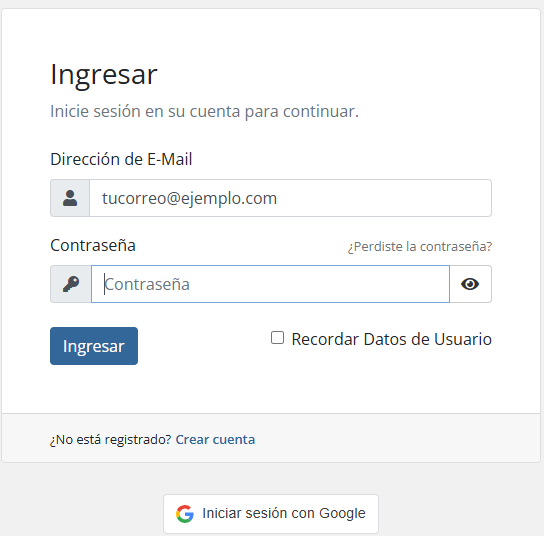
Log in to your client area
From your computer, go to your client area with your usual email and password. If you have several accounts with us, do this with the one you want to protect (repeat later for the others).
Open the Security section
In the top right you'll see your name. Click it to open the menu and choose "Security Settings".
You can also get there directly from the menu Hello, [your name] → Security Settings.
Enable two-factor authentication
On that screen, look for the "Two-Factor Authentication" section and click the "Click here to Enable" button.
Choose the "Time Based Tokens" option — that's the one that works with Google Authenticator — and click "Get Started".
Scan the QR code with the app
The screen will show you a QR code (a small square made of dots). On your phone, open Google Authenticator, tap the "+" button, and choose "Scan a QR code". Point your camera at the square on your screen.
The app will create an entry named something like "Capa7" with a 6-digit code that changes every few seconds. If you can't scan it, use the "Enter a setup key" option and copy the text code shown next to the QR code.
Confirm with the 6-digit code
Back on your computer, type the 6-digit code the app shows at that moment into the box and click "Submit". Take your time: the code changes every 30 seconds, so if it's about to expire, wait for the next one and use that instead.
Save your backup code
When you finish, the system will show you a backup code. Store it somewhere safe — it's the key that lets you back in if you ever lose or change your phone. Write it down on paper or save it in your password manager; don't keep it only on the same phone that has the app.
Done! 2FA is now active. The next time you log in, after your password it will ask for the 6-digit code from the app.
Very important: that backup code is your lifeline. Without the phone and without the backup code, you'll need to verify your identity with our team to recover access. Spend ten seconds now storing it properly and save yourself a headache later.
Check that it worked
Log out and log back in. After entering your password you should see a screen asking for the 6-digit code. Open Google Authenticator, type it in, and log in. If it works, everything is now protected. That's all that changes in your day-to-day use: one extra code when you log in.
Frequently Asked Questions
Is it really mandatory? Can I skip it?
Yes, it's mandatory for all clients; it's a security measure to protect your account and your services. Enabling it takes five minutes and you only do it once.
I changed phones — do I lose access?
No, as long as you saved your backup code: use it to log in and set up 2FA again on your new phone. If you also transferred your accounts to the new phone (Google Authenticator lets you export/import), the code keeps working with no extra steps. If you lost both, contact us and we'll verify your identity to reactivate it.
I lost my phone and don't have the backup code — what do I do?
Contact us through our usual channels (WhatsApp or a support ticket). We'll verify that you're the account holder and help you recover access. For security, this process includes identity checks.
Does another app besides Google Authenticator work?
Yes. Any time-based one-time password (TOTP) app works: Authy, Microsoft Authenticator, 1Password, and others. The steps are the same: you scan the same QR code and use the 6-digit code.
The code says "invalid" or "incorrect" — why?
Almost always it's because the code already expired (it changes every 30 seconds) — wait for the next one and try again. The other common cause is that your phone's clock is off: turn on automatic date and time in your phone's settings and try again.
Does 2FA make logging in slower every time?
Barely: it's a few extra seconds to type the code. In exchange, your account is protected against password theft, the most common type of attack. Totally worth it.
The one-sentence summary
Install Google Authenticator, go to Security Settings in your client area, enable Time Based Tokens, scan the QR code, confirm with the 6-digit code, and save your backup code. Set up for good.

Capa7 Team
17 years running hosting, VPS, and dedicated servers on our own infrastructure in Boca Raton, Florida. We write things the way we'd want them explained to us: clear, no hype.
Got stuck on a step?
Message us and we'll walk you through enabling it right now. It's quick and we're here to help.
Help via WhatsApp